Xender Unable to Find Receivers? Here Are the Best Fixes
Xender is one of the easiest apps for sharing files between phones. It allows users to transfer photos, videos, documents, and apps quickly without using mobile data or cables.
However, sometimes Xender users face a common problem: the receiver device does not appear while searching for nearby devices. You may open Xender, select send or receive, but the other phone is missing from the list.
This problem usually happens because of connection issues, incorrect settings, or background apps interfering with Xender. The good news is that most of these problems can be fixed within a few minutes.
Below are the most effective solutions to fix the Xender unable to find receivers problem.
1- Check Your Wi-Fi Connection
Xender uses Wi-Fi technology to create a direct connection between devices. If the Wi-Fi on the sender’s phone is not working properly, Xender may not detect nearby devices.
Before trying anything else:
- Turn Wi-Fi off and turn it on again.
- Make sure Wi-Fi scanning is working.
- Restart the phone’s Wi-Fi connection.
- Move both devices closer together.
Also check that your phone is not facing any network-related issue. A weak or unstable Wi-Fi connection can prevent Xender from finding available receivers.
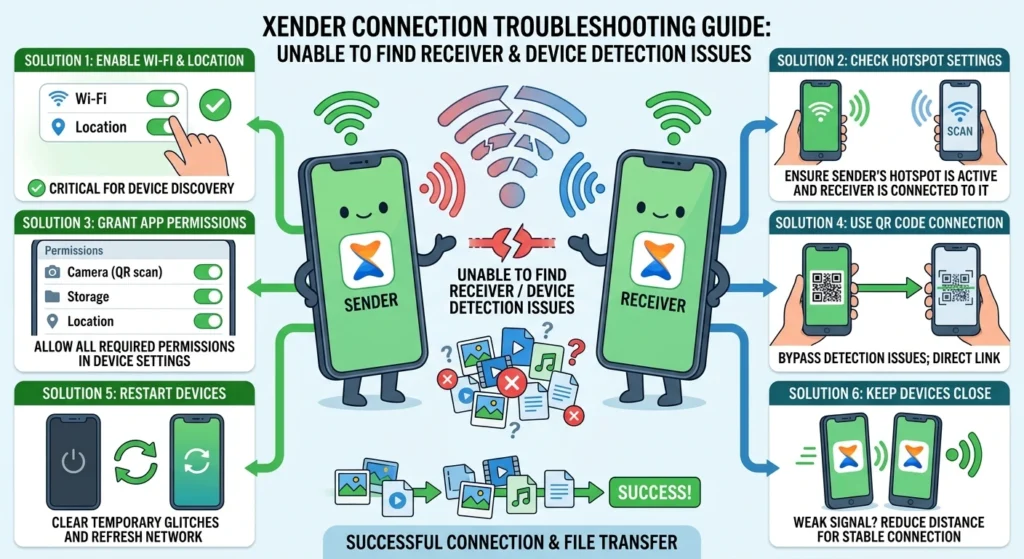
2- Make Sure Hotspot Is Set Up Correctly
In many cases, the receiver phone’s hotspot settings cause connection problems.
Follow these steps:
- Open Xender on both devices.
- Start the receiving mode on the receiver phone.
- Turn on the hotspot if Xender asks you to.
- Connect the sender phone to the receiver’s hotspot.
- Restart Xender and search again.
Both devices should be connected to the same network. If one device is using a different Wi-Fi connection, it may not detect the other.
3- Restart Xender on Both Devices
Sometimes Xender does not refresh the nearby device list properly because of a temporary app error.
Try this simple fix:
- Close Xender completely.
- Remove it from recent apps.
- Open Xender again.
- Start the transfer process from the beginning.
Restarting the app can refresh the connection and help devices appear again.
4- Close Background Apps
Other apps running in the background can sometimes affect Xender’s performance. Some apps may use Wi-Fi, Bluetooth, or system resources, making it difficult for Xender to create a connection.
To fix this:
- Close unnecessary apps.
- Clear recent apps.
- Open Xender only after closing other heavy applications.
This can improve connection speed and reduce transfer problems.
5- Check Xender Permissions
If Xender does not have the required permissions, it may not be able to search for nearby devices.
Make sure Xender has permission to access:
- Location
- Nearby devices
- Storage
- Wi-Fi settings (depending on your phone model)
To check permissions:
Settings → Apps → Xender → Permissions
Enable the required options and try again.
6- Switch Sender and Receiver Roles
Sometimes the problem is caused by one device not creating a proper connection.
Try changing the roles:
- Make the current receiver the sender.
- Make the current sender the receiver.
Open Xender on both phones and select the opposite options. Many users find that switching roles helps Xender detect the missing device.
7- Restart Both Phones
A simple phone restart can solve many temporary connection problems.
Restart both devices and then:
- Open Xender.
- Select send and receive.
- Search for nearby devices again.
This refreshes system connections and removes small errors that may stop device detection.
8- Update Xender to the Latest Version
Older versions of Xender may have compatibility problems with newer Android or iOS versions.
Check your app store and update Xender if a new version is available.
Keeping the app updated helps improve:
- Device detection
- Transfer speed
- Connection stability
- Bug fixes
9- Turn Off Battery Saver Mode
Battery-saving features can limit background activity and wireless functions. This may prevent Xender from working correctly.
Disable battery saver temporarily:
Settings → Battery → Battery Saver → Turn Off
Then open Xender again and check if the receiver appears.
10- Clear Xender Cache
A damaged cache file can sometimes create problems with the app.
To clear cache:
Settings → Apps → Xender → Storage → Clear Cache
Do not clear app data unless necessary because it may remove saved settings.
11- Keep Devices Close Together
Although Xender does not require an internet connection, the connection range between devices still matters.
Keep both phones close to each other while connecting. Avoid walls or obstacles that may weaken the wireless signal.
Final Thoughts
The Xender unable to find receivers problem is usually caused by simple connection issues, incorrect hotspot settings, missing permissions, or temporary app errors.
Start with basic fixes like restarting Xender, checking Wi-Fi, and reconnecting the hotspot. If the problem continues, try updating the app, checking permissions, or restarting both devices.
With these solutions, you should be able to connect your devices and transfer files smoothly again.
Frequently Asked Questions (FAQs)
Why is Xender not showing nearby devices?
Xender may not show nearby devices because of Wi-Fi issues, incorrect hotspot settings, disabled permissions, outdated app versions, or interference from background apps. Make sure both devices have Wi-Fi enabled and are using the correct connection method.
Why can’t Xender find my receiver phone?
If Xender cannot find the receiver phone, restart the app on both devices and check that the receiver has properly entered receiving mode. Also make sure both phones are connected to the same hotspot or Wi-Fi network.
Does Xender need an internet connection to find devices?
No, Xender does not require mobile data or an internet connection for file transfers. It creates a direct wireless connection between devices using Wi-Fi technology.
Why is my Xender connection failing even when both phones are nearby?
The connection may fail due to incorrect network settings, blocked permissions, battery-saving restrictions, or temporary app errors. Restarting both phones and reconnecting through Xender usually fixes the issue.
How do I fix Xender not detecting devices on Android?
To fix Xender device detection problems on Android:
- Enable Wi-Fi and location permissions.
- Turn off battery saver mode.
- Clear Xender cache.
- Restart the app.
- Update Xender to the latest version.
Why does Xender show “No nearby devices found”?
The “No nearby devices found” message usually appears when the receiver is not in receiving mode, the hotspot is not configured correctly, or both devices are not connected properly.
Can I use Xender without turning on Wi-Fi?
No. Xender uses Wi-Fi-based technology to connect devices. Even though it does not need internet access, Wi-Fi must be enabled for device detection and file transfer.
How do I restart Xender when it is not working?
Close Xender completely from recent apps, wait a few seconds, and open it again. If the problem continues, restart both phones and try connecting again.
Why is Xender unable to find iPhone devices?
Xender may fail to detect an iPhone because of restricted permissions, network settings, or connection issues. Check that Xender has the required permissions and that both devices are using the same connection method.
Does updating Xender fix connection problems?
Yes, updating Xender can fix many connection problems because newer versions often include bug fixes, improved device compatibility, and better transfer performance.
Why does Xender disconnect during file transfer?
Xender may disconnect because of weak wireless signals, battery optimization settings, background restrictions, or moving the devices too far apart. Keep both phones close and avoid closing the app during transfers.
How can I make Xender find devices faster?
To improve device detection speed:
- Keep both phones close together.
- Close unnecessary apps.
- Turn off VPN or battery saver.
- Restart Wi-Fi before opening Xender.
- Use the latest version of the app.