How to Fix Xender Crashing on Android and iPhone
Xender is one of the most popular file-sharing apps that helps users transfer photos, videos, documents, apps, and other files between devices. It works across different platforms, including Android, iPhone, Windows, and Mac.
The app is fast, easy to use, and does not require an internet connection for transferring files. However, sometimes Xender may suddenly stop working, freeze, or crash while opening or transferring files.
If Xender keeps crashing on your phone, the problem is usually caused by old cache files, low storage space, outdated app versions, or permission issues.
The good news is that you can fix most Xender crashing problems in a few simple steps.
Why Does Xender Keep Crashing?
There can be several reasons why Xender crashes again and again. Some common causes include:
- Too much app cache and temporary files
- Xender does not have the required permissions
- Low phone storage
- Outdated Xender app version
- Corrupted app data
- Background apps causing conflicts
- Phone software issues
Before reinstalling Xender, try the solutions below.
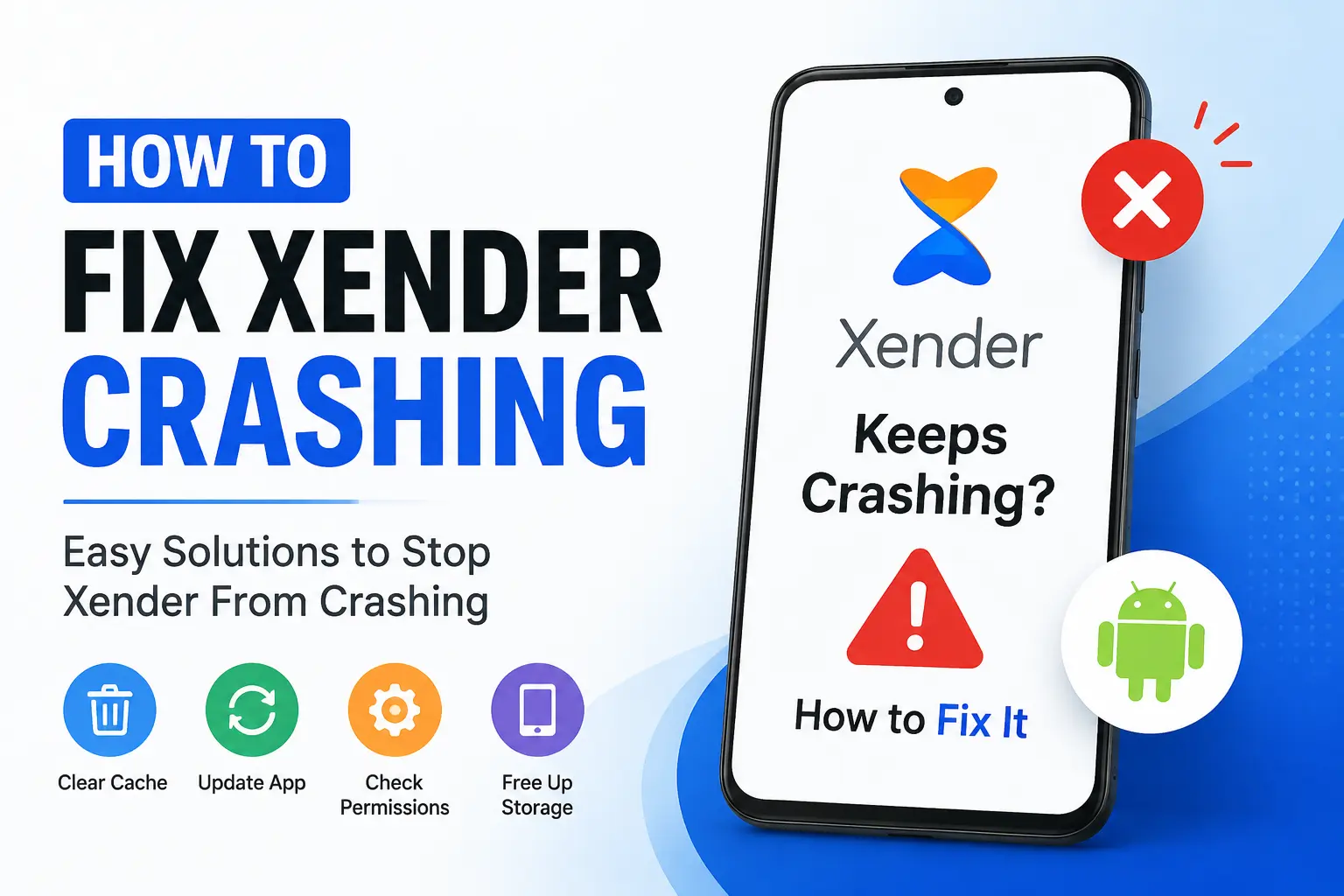
How to Fix Xender Crashing Problem
Follow these methods to stop Xender from crashing.
1. Clear Xender Cache
The most common reason behind Xender crashes is damaged or overloaded cache files. Clearing the cache removes temporary files without deleting your personal data.
Follow these steps:
- Open Settings on your Android phone.
- Go to Apps or App Management.
- Find and open Xender.
- Tap Storage.
- Select Clear Cache.
Now open Xender again and check if the problem is fixed.
2. Clear Xender App Data
If clearing the cache does not solve the issue, you can clear the app data. This will reset Xender and remove saved app settings.
To clear Xender data:
- Open Settings.
- Go to Apps > Xender.
- Tap Storage.
- Select Clear Data.
After this, open Xender and set it up again.
Note: Clearing data may remove app settings and connection history.
3. Update Xender to the Latest Version
Using an old version of Xender can cause crashes and performance problems.
Developers regularly release updates to fix bugs and improve app stability.
To update Xender:
- Open the Google Play Store or App Store.
- Search for Xender.
- Tap Update if a new version is available.
After updating, restart your phone and try using Xender again.
4. Check Xender Permissions
Xender needs permission to access storage, Wi-Fi, Bluetooth, and nearby devices. If permissions are blocked, the app may crash.
To check permissions:
- Open Settings.
- Go to Apps > Xender > Permissions.
- Allow all required permissions.
Now restart Xender and test file transfer.
5. Free Up Phone Storage
Your phone needs enough free space for apps to work properly. Low storage can make Xender freeze or crash during file transfers.
Try these steps:
- Delete unnecessary videos and files.
- Remove unused apps.
- Clear unwanted downloads.
After freeing storage, open Xender again.
6. Restart Your Phone
Sometimes temporary system problems can cause apps to crash.
A simple restart can refresh your phone memory and fix small errors.
To restart:
- Press and hold the power button.
- Select Restart.
- Open Xender after your phone turns on.
7. Disable Battery Restrictions for Xender
Some phones automatically stop apps running in the background to save battery. This can interrupt Xender transfers.
To fix this:
- Open Settings.
- Go to Battery Settings.
- Find Xender.
- Allow background activity.
This helps Xender work smoothly during file transfers.
8. Reinstall Xender
If none of the above solutions work, reinstalling Xender can fix corrupted files.
Follow these steps:
- Uninstall Xender from your phone.
- Restart your device.
- Install Xender again from the official app store.
A fresh installation removes damaged files and gives you a clean version of the app.
How to Prevent Xender From Crashing Again
To avoid future Xender problems, follow these tips:
- Keep Xender updated.
- Clear cache regularly.
- Keep enough free storage space.
- Avoid using too many apps at the same time.
- Allow necessary permissions.
- Restart your phone occasionally.
Frequently Asked Questions (FAQs)
Why does Xender keep stopping on Android?
Xender usually stops because of cache problems, outdated versions, low storage, or missing permissions. Clearing the cache or updating the app usually fixes the issue.
Will clearing Xender cache delete my files?
No. Clearing cache only removes temporary files. Your transferred files and saved data will remain safe.
Why does Xender crash during file transfer?
Xender may crash during transfer because of low storage, unstable connection between devices, or restricted permissions.
How do I fix Xender not opening?
Try clearing the cache, restarting your phone, updating Xender, or reinstalling the app if it still does not open.
Can I use Xender without an internet connection?
Yes. Xender uses Wi-Fi Direct technology to transfer files between devices without requiring mobile data.
Final Thoughts
Xender crashing can be frustrating, especially when you need to send important files quickly. In most cases, the problem is caused by simple issues like cache files, outdated apps, or permission settings.
Start by clearing the Xender cache and checking app permissions. If the problem continues, update or reinstall the app.
By following these solutions, you can fix Xender crashing issues and enjoy smooth file transfers again.