How to Move Xender to SD Card on Android
Xender is a popular file-sharing application that allows users to transfer photos, videos, documents, apps, and other files quickly between devices. Unlike traditional Bluetooth transfers, Xender uses Wi-Fi technology to enable much faster file sharing across Android, iOS, Windows, and Mac devices.
Moving Xender to an SD card or changing its storage location can help free up valuable space on your phone.
In this guide, you will learn how to move Xender to an SD card, change the default storage location, and fix common problems that prevent Xender from being moved.
Can You Move Xender to an SD Card?
Yes, in some Android devices, you can move Xender to an SD card. However, this depends on:
- Your Android version
- Phone manufacturer restrictions
- Whether the SD card supports app storage
- Xender’s compatibility with your device
Some newer Android versions no longer allow moving apps completely to external storage due to security restrictions. In these cases, you can still move Xender files and change the download location to your SD card.
How to Move Xender to SD Card
Follow these steps to move Xender from internal storage to an SD card:
Step 1: Open Phone Settings
Open the Settings app on your Android device.
Step 2: Go to Apps
Scroll down and select:
Apps → Manage Apps → Installed Apps
(The name may be slightly different depending on your phone brand.)
Step 3: Select Xender
Find Xender from the list of installed applications and open its settings page.
Step 4: Check Storage Options
Tap:
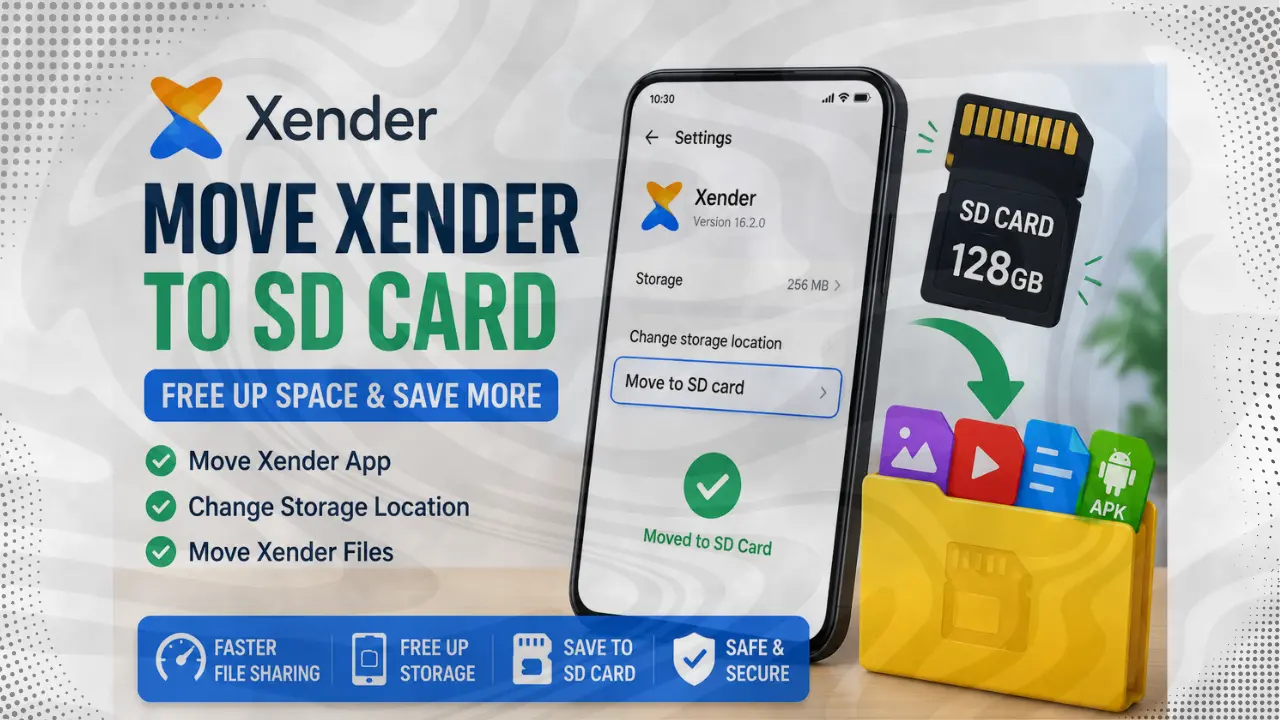
Storage → Change Storage Location
If your device supports app movement, you will see the option:
Move to SD Card
Step 5: Confirm the Move
Select SD Card and confirm the transfer.
Your phone will move supported Xender data to the external storage.
How to Change Xender Storage Location to SD Card
If your phone does not allow moving the complete app, you can still save received files directly to your SD card.
Follow these steps:
- Open the Xender app.
- Tap your Profile/Menu icon.
- Open Settings.
- Find Storage Location or Download Location.
- Select your SD Card.
After changing this setting, new files received through Xender will be stored on your SD card instead of internal memory.
How to Move Xender Files to SD Card Manually
If Xender is already installed but your storage is full, you can move existing files manually.
Steps:
- Open your phone’s File Manager.
- Go to:
Internal Storage → Xender
- Select the files or folders you want to move.
- Tap Move.
- Choose your SD card location.
- Paste the files there.
This method is useful for videos, images, and documents received through Xender.
Why Can’t I Move Xender to SD Card?
Sometimes Android users do not see the “Move to SD Card” option. This happens because:
1. Your Android Version Does Not Support It
Many newer Android versions restrict moving apps to external storage.
2. Your Phone Manufacturer Disabled the Feature
Some brands remove app migration options for security and performance reasons.
3. SD Card Is Not Properly Configured
Your SD card may need to be formatted as internal storage before apps can be moved.
4. Xender Does Not Support App Movement on Your Device
Some apps can only store their files externally but cannot run completely from an SD card.
How to Free Up Space Used by Xender
If moving Xender is not possible, try these alternatives:
Clear Xender Cache
Go to:
Settings → Apps → Xender → Storage → Clear Cache
This removes temporary files without deleting your data.
Delete Old Received Files
Remove unnecessary videos, documents, and APK files from the Xender folder.
Move Xender Media Files
Transfer large files from internal storage to your SD card.
Does Moving Xender to SD Card Affect Performance?
Moving Xender to an SD card may slightly affect performance depending on your card speed.
A slow SD card may cause:
- Longer loading times
- Slower file access
- Delayed app opening
For better performance, use a high-speed SD card such as Class 10 or UHS-rated storage.
Frequently Asked Questions
Can I install Xender directly on an SD card?
Only some Android devices allow installing apps directly on an SD card. Most modern phones install apps on internal storage.
Does Xender automatically save files to SD card?
No. You need to manually change the storage location in Xender settings if your device supports this option.
Will moving Xender delete my files?
No. Moving the application normally does not delete your received files. However, it is recommended to back up important files before changing storage settings.
Why does Xender take so much storage?
Xender uses storage for received files, temporary transfer data, cache files, and shared media.
Can I move Xender to SD card without root?
Yes, if your Android device supports app movement. Root access is usually not required.
Final Thoughts
Moving Xender to an SD card is an effective way to reduce internal storage usage, but the available options depend on your Android device and operating system. If your phone does not allow you to move the app, change the Xender storage location, or manually transfer files, you can still save space.
By managing your Xender files regularly and using a reliable SD card, you can continue sharing large files without worrying about running out of storage.