Unable to Transfer Files with VPN (Fix) – Complete Guide to Solve Xender File Transfer Problems
Xender is one of the most popular file-sharing apps that allows users to transfer photos, videos, documents, apps, and other files between devices without using mobile data. It provides fast transfer speeds and works across Android, iPhone, PC, and other platforms.
However, many users face a common problem while using Xender: unable to transfer files with VPN enabled.
You may notice that the connection fails, the receiver cannot be found, the transfer gets stuck, or Xender keeps showing connection errors. In most cases, the main reason behind this issue is the VPN connection running in the background.
In this guide, we will explain why VPN causes file transfer problems in Xender and how you can fix the issue easily.
Why Does Being Unable to Transfer Files with a VPN Happen?
A VPN (Virtual Private Network) changes your device’s internet connection and hides your original IP address. While VPNs are useful for privacy and security, they can sometimes interfere with local file-sharing apps like Xender.
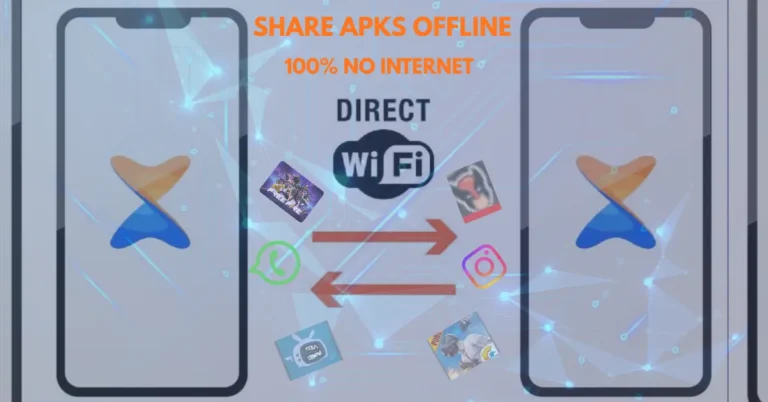
Xender does not transfer files through the normal internet connection. Instead, it creates a direct connection between two devices using Wi-Fi hotspot or local network technology.
When a VPN is active, it may block this local connection and prevent both devices from communicating properly.
Some common reasons why a VPN creates problems with Xender file transfer are:
1. VPN Blocks Local Network Connection
When you connect to a VPN, your device starts routing traffic through the VPN server. Because of this, Xender may not be able to detect nearby devices.
For example, if you are sending files from one Android phone to another, both phones need to communicate through the same local network. A VPN can interrupt this process.
2. Receiver Device Cannot Be Found
Many users experience the issue where the sender creates a connection, but the receiver device does not appear.
This usually happens because the VPN changes network settings and prevents Xender from searching for nearby devices.
You may see errors like:
- Unable to find receiver
- Connection failed
- Device not detected
- Waiting for connection
3. VPN Firewall Blocks Xender
Some VPN applications include built-in security features that block unknown connections.
Since Xender creates a temporary connection between devices, some VPNs consider it unsafe and stop the communication process.
4. Different Network Connection
For successful file transfer, both devices should be connected properly.
If one device is connected to VPN while another device is using a normal Wi-Fi network, Xender may fail to create a connection between them.
How to Fix Unable to Transfer Files with VPN on Xender
Follow these simple solutions to fix Xender transfer problems caused by VPN.
Method 1: Turn Off VPN Before Using Xender
The easiest solution is disabling your VPN temporarily.
Follow these steps:
- Open your VPN application.
- Tap the Disconnect button.
- Close the VPN app completely.
- Open Xender again.
- Start the file transfer.
After turning off the VPN, Xender can easily detect nearby devices and complete the transfer.
Method 2: Allow Xender Through VPN Settings
Some VPN apps allow users to select which apps should use the VPN connection.
You can exclude Xender from VPN protection by using the split tunneling feature.
Steps:
- Open your VPN app.
- Go to Settings.
- Find Split Tunnelling or App Exclusion.
- Remove Xender from VPN apps list.
- Restart Xender.
Now Xender will work normally while your other apps continue using VPN.
Method 3: Restart Wi-Fi and Mobile Hotspot
Sometimes the problem is not only the VPN. Network settings can also create connection issues.
Try restarting your network:
- Turn off Wi-Fi.
- Disable mobile hotspot.
- Wait for a few seconds.
- Turn them back on.
- Connect both devices again.
Now open Xender and try transferring files.
Method 4: Check Xender Permissions
Xender requires certain permissions to discover nearby devices and access files.
If permissions are disabled, file transfer may not work properly.
To check permissions:
Android:
- Open Settings.
- Go to Apps.
- Select Xender.
- Open Permissions.
- Allow:
- Storage access
- Nearby devices
- Location permission
- Wi-Fi access
After enabling permissions, restart the app.
Method 5: Update Xender to the Latest Version
An outdated version of Xender may contain bugs that affect file transfer.
Developers regularly release updates to improve:
- Connection stability
- Device detection
- Transfer speed
- Compatibility issues
Go to our home page and check whether a new Xender update is available.
Method 6: Clear Xender Cache
Temporary app files can sometimes cause connection problems.
Clearing the cache can refresh the application.
Follow these steps:
- Open phone Settings.
- Go to Apps.
- Select Xender.
- Tap Storage.
- Choose Clear Cache.
Do not select Clear Data unless you want to reset the application completely.
Method 7: Restart Both Devices
A simple restart can solve many temporary network problems.
Restart:
- Sender device
- Receiver device
- Wi-Fi hotspot
After restarting, open Xender and try again.
Can You Use Xender With VPN?
Yes, you can use Xender with VPN, but it depends on the VPN settings.
Most VPNs interfere with local file sharing because they redirect network traffic. For smooth transfers, it is recommended to turn off VPN while sending or receiving files.
If you need VPN protection all the time, use a VPN that supports split tunneling and allow Xender to bypass the VPN connection.
Why Does Xender Work Without VPN But Not With VPN?
This happens because Xender uses a direct device-to-device connection, while VPN creates a different network path.
Without VPN:
Device A → Local Network → Device B
With VPN:
Device A → VPN Server → Internet Connection → Device B
Because both devices are no longer communicating through the same local network, Xender cannot establish a stable connection.
Other Xender Connection Problems Related to VPN
Apart from failed transfers, VPN can also cause these issues:
Xender Stuck at Connecting
If Xender keeps loading and does not connect, disable VPN and restart the app.
Xender Transfer Speed Is Slow
VPN encryption can reduce network speed and affect transfer performance.
Xender Disconnects During Transfer
A VPN connection drop can interrupt the file-sharing process.
Xender Cannot Create Hotspot
Some VPN apps block hotspot functionality, which prevents Xender from creating a connection.
Tips for Smooth Xender File Transfer
Follow these tips to avoid future problems:
- Turn off VPN before transferring large files.
- Keep both devices close to each other.
- Make sure Wi-Fi and hotspot are working properly.
- Update Xender regularly.
- Keep enough storage space available.
- Avoid running multiple network apps in the background.
- Give Xender all required permissions.
Frequently Asked Questions (FAQs)
Why is Xender not working when VPN is on?
Xender may not work with VPN because VPN changes network settings and blocks the direct connection required for file sharing.
Do I need to uninstall the VPN to use Xender?
No, you do not need to uninstall your VPN. Simply disconnect it while transferring files or exclude Xender from VPN settings.
Can VPN slow down Xender transfer speed?
Yes, a VPN can reduce transfer speed because files may be affected by network routing and encryption processes.
Why can’t Xender find another device?
The most common reasons are an active VPN, disabled permissions, different networks, or Wi-Fi connection problems.
Is Xender safe without VPN?
Yes, Xender transfers files directly between devices. However, always download Xender from trusted sources and keep your device secure.
Final Words
The unable to transfer files with VPN issue is a common problem faced by many Xender users. The main reason is that VPN changes your network connection and prevents Xender from creating a direct link between devices.
The quickest fix is to turn off your VPN before starting the transfer. If you want to keep using VPN, enable split tunnelling and allow Xender to bypass the VPN connection.
By following the solutions mentioned above, you can easily fix Xender connection problems and transfer your files smoothly again.