New Xender Web Hotspot Direct Mode >>> 2026
If you’ve tried visiting web.xender.com lately, you may have noticed—it’s no longer available. That’s because Xender officially retired its online web version and replaced it with a faster, more secure, offline solution: Hotspot Direct Mode.
In 2025, Xender introduces a no-internet wireless transfer method that allows Android and iOS users to connect directly to any PC or laptop—without using Wi-Fi, mobile data, or cloud services.
Now, your phone creates a local Wi-Fi hotspot. Your PC connects to it directly, and you access Xender Web via a unique local IP (e.g., 192.168.xx.xx:33455)—no software installation or internet required.
🔑 Why It’s Better:
- Fully offline & secure – No cloud, no third-party access
- Ultra-fast transfer speeds – 20–40 MB/s over direct Wi-Fi
- Cross-platform – Works with both Android & iOS
- No cables, drivers, or PC apps needed
Whether you’re sharing large videos, app backups, folders, or documents, this method gives you total control, maximum privacy, and excellent speed.
In the next sections, we’ll walk you through step-by-step connection guides for Android and iOS, complete with screenshots and troubleshooting tips.
Why Is web.xender.com Not Working Anymore in 2025-26?
If you’re wondering why the old web.xender no longer loads—you’re not alone. Xender quietly discontinued its traditional online web interface in late 2024 due to growing concerns around browser compatibility, security, and data privacy.
The original web portal relied on cloud-mediated transfers, which introduced risks like:
- Slow file transfers on weak internet connections
- Exposure to public networks
- Compatibility issues with newer browsers and OS updates
To address these problems, Xender replaced it with a local-host-based Hotspot Mode, making the experience faster, more secure, and entirely offline.
🔄Comparison: Xender Web (Old Mode) vs Direct Hotspot Mode (2026)
| Feature | Xender Web (Old Mode) | Xender Direct Hotspot Mode (2025) |
|---|---|---|
| Internet Required | ✅ Yes – both phone and PC needed Wi-Fi/data | ❌ No – works offline via phone’s hotspot |
| Connection Speed | ⚠️ Variable – depends on network quality | 🚀 Fast – direct, stable peer-to-peer connection |
| Setup Method | Scan QR code on web.xender.com | Connect to hotspot shown in Xender app |
| Website Used | web.xender.com | No website – direct local web address (e.g., 192.168…) |
| Security | 🔓 Dependent on internet security | 🔐 More secure – local direct connection |
| Working in 2025 | ❌ Deprecated – often shows error/timeout | ✅ 100% functional & recommended |
| OS Compatibility | Windows, macOS (browser-based) | Windows, macOS, Linux – any browser |
💡 Expert Insight:
The Direct Hotspot Mode is a game-changer — it not only solves connectivity issues but also boosts transfer speeds dramatically. Unlike the old mode, which relied on third-party servers and could fail if the site was down, this new method is peer-to-peer, faster, and more secure.
🔐 Is the New Xender Method Secure and Reliable?
Absolutely — the Xender Web Hotspot Method (2025) offers enhanced privacy and reliability over the outdated QR-based mode.
✅ Why It’s Secure:
- Peer-to-peer connection: No internet or third-party server is involved — your files stay within your private network.
- No cloud storage: Unlike apps that temporarily upload files to the cloud, Xender transfers files directly, reducing exposure.
- Unique local IP: Each session runs on a local IP (e.g.,
192.168.x.x), not visible to anyone outside the hotspot.
🔁 Why It’s Reliable:
- No internet dependency: Works flawlessly even without Wi-Fi or mobile data.
- Fewer connection errors: Avoids issues like QR code scanning failures, website downtimes, and sync bugs.
- Stable transfers: Delivers faster, more consistent speeds than Bluetooth or internet-based methods.
🔒 In short: The new method is not only faster and easier — it’s also more secure and dependable.
📱 What are Supported Devices for Xender Web Hotspot Mode?
The new hotspot-based method is designed for maximum compatibility across mobile and desktop platforms:
🔹 Mobile Devices (Sender)
- Android: Version 5.0 (Lollipop) and above
- Must support Wi-Fi hotspot/personal hotspot
- iPhone (iOS): iOS 11 and above
- Use Personal Hotspot from Settings
🔸 Computers (Receiver)
Works with any PC/laptop that supports a Wi-Fi connection and has a modern browser:
- Windows (7, 8, 10, 11)
- macOS (High Sierra and newer)
- Linux (Ubuntu, Fedora, etc.)
🌐 Browser Compatibility:
- Chrome, Edge, Firefox, Safari — all modern browsers supported
- No need for Xender app or cable on the PC side
💡 Pro Tip: If your phone can create a hotspot and your computer can connect to Wi-Fi, you’re good to go — it’s that simple.
Download the Latest Xender App (APK/iOS)
🌐 Xender Web Hotspot Mode – No Internet Required
Share files between your phone and PC without Wi-Fi, cables, or the internet. Just scan the QR code, connect via hotspot, and transfer instantly.
| 🔥 Feature | 💡 Details |
|---|---|
| No Cables Needed | Transfer wirelessly via your phone’s hotspot. |
| No App Required on PC | Open browser and connect using a QR code. |
| Device Support | Android, iOS, Windows, Mac, Linux supported. |
🔄 Tip: Always download from trusted sources or the official website to avoid malware or fake apps.
Key Features of Xender Web
- Completely wireless & free: No cables or USB needed. Xender works over your local Wi-Fi network and uses “zero data usage”, so you save mobile data. It is totally free—no subscription or hidden fees.
- Any file, any size: Send any type of file—photos, videos, music, PDFs, apps (APK), etc.—without compression. There is no file-size limit, so multi-gigabyte videos or entire photo albums transfer effortlessly.
- Cross-platform support: Share files between Android, iOS, Windows PC and Mac. Xender Web runs in any modern browser, so it works across all major brands and operating systems. You get “lightning fast” transfer speeds on all devices.
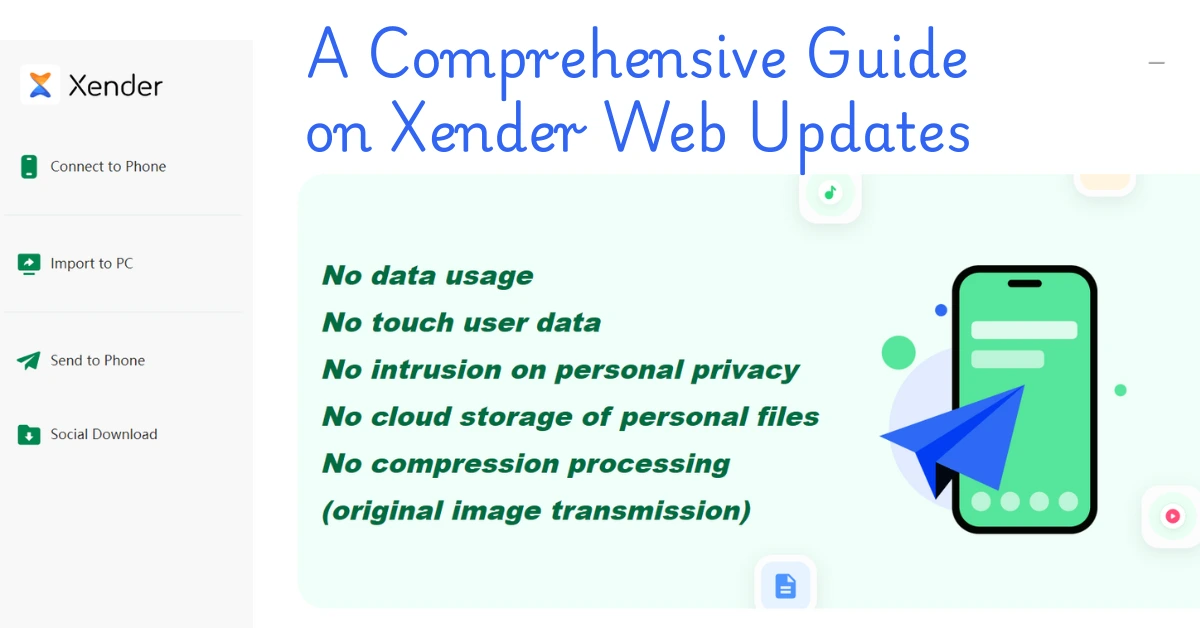
- Secure and private: Transfers occur directly over your local network—nothing is uploaded to the cloud. Xender does not store your personal data on its servers, and it never compresses or reduces your files during transfer. Your privacy and file integrity are protected.
Xender Web – Frequently Asked Questions (FAQs)
Q1: Can I transfer files without installing Xender on PC now that web.xender.com is outdated?
→ Yes! Although web.xender.com is no longer active, you can still transfer files wirelessly.
Just open the Xender app → tap “Connect to PC” → it will show a local IP address (e.g., 192.168.x.x:33455) → enter that IP in your PC browser → scan the QR code, and you’re instantly connected.
✅ No app installation needed
✅ Works without internet
Q2: Why isn’t my Xender “Connect to PC” method working?
→ Here’s how to fix it:
✅ Make sure both phone and PC are on the same Wi-Fi network
🔄 Update the Xender app to the latest version
🚫 Disable VPNs or firewalls blocking local IPs
💡 Tip: Use Chrome or Firefox for smoother experience
Q3: Can iPhone users still use Xender to transfer files to PC?
→ Absolutely! On iPhone:
Open the Xender app → tap “Connect to PC” → a QR code page will appear with a local IP → open that IP on your browser → scan and start transferring files.
✅ No cables, no iTunes, no internet needed
Q4: What’s the file size limit when using the new Xender Web method?
→ There’s no file size limit! You can transfer:
🎥 Ultra HD videos (4K, 8K)
📁 Full folders via drag & drop
📦 Multiple large files at once
⚡ Speed: Up to 40MB/s depending on Wi-Fi quality
Q5: Does this new Xender Web method use my mobile data?
→ No. It uses local Wi-Fi Direct or your personal hotspot.
✅ Zero data usage
✅ Works completely offline
Q6: Is this new method secure for transferring sensitive files?
→ Yes! Xender ensures safety with:
🔒 Local encrypted connection (WPA2 over Wi-Fi Direct)
⏱️ Auto-disconnect after inactivity
🗃️ No cloud involvement – your files never leave your devices
Q7: Is Xender Web still compatible with macOS, Linux, or Chromebooks?
→ Yes! It works across all operating systems.
Just enter the IP (shown in your Xender app) into any browser:
✅ Windows / macOS / Linux / ChromeOS
✅ Supported browsers: Chrome, Safari, Firefox, Edge
No installations. Just scan & share.
Q8: What if the QR code or IP address isn’t working on my browser?
→ Try these solutions:
🔄 Refresh the QR screen in the Xender app
🧹 Clear browser cache or use Incognito mode
🌐 Make sure your browser supports local IPs
🔌 Disable firewalls or antivirus that might block connections
Still stuck? Contact: support@xender.com
Q9: Can I transfer files from Android to a MacBook or Linux PC?
→ Yes, easily!
Use the “Connect to PC” feature and open the local IP on your Mac/Linux.
No iTunes, cables, or software required — full wireless cross-platform transfer.
Q10: Does the current Xender PC transfer method still work offline?
→ 100% yes. It creates a Wi-Fi Direct or Hotspot connection:
✈️ Works in airplane mode
🌍 No internet or SIM required
🔌 Ideal for fast, local file sharing
Final Thoughts: The Future of Xender Web Is Offline
The retirement of web.xender.com signals a shift toward local, secure, internet-free file sharing. With the hotspot-powered Xender for pc Web mode, users get:
- Faster, stable connections
- No reliance on external servers
- Broader device compatibility
- No need for third-party apps on PC
Whether you’re on Android, iOS, Windows, or Mac, this new offline approach offers a future-proof, secure, and user-friendly solution for transferring files between your phone and computer.