Xender Not Working? 7 Easy Fixes (2026 Guide)
If your Xender app is not working properly, you are not alone. I’ve been there—many users face issues, like connection errors, slow transfers, or app crashes.
In this guide, I’ll walk you through 7 proven, easy fixes I used to get Xender working perfectly again in under 5 minutes.
Why is Xender Not Working? The Real Reasons.
If your Xender app is acting up, it usually comes down to a few simple glitches. In my experience, these are the most common reasons:
- Outdated Version: You’re using an old version that isn’t compatible with your phone.
- Cache Overload: Temporary files are clashing and causing the app to crash.
- Missing Permissions: Xender needs access to your location and storage to “see” other devices.
- Network Conflicts: Your Wi-Fi or Hotspot settings are blocking the connection.
Don’t worry. Most of these take less than a minute to fix.
Fix 1: Restart Xender App
The first thing you should try is a simple restart. I know it sounds basic, but in my experience, this solves about 50% of app crashes instantly. It clears out minor “hiccups” in your phone’s memory.
How to do it properly:
- Don’t just press the home button. Swipe up from the bottom of your screen to see your open apps.
- Find the Xender window and swipe it away to close it completely.
- Wait 5 seconds, then tap the Xender icon to reopen it.
This simple refresh clears temporary glitches without deleting any of your important files.
Fix 2: Clear the Xender App Cache
If a restart didn’t work, the problem is likely “junk” data stuck in your app’s memory. Over time, Xender collects temporary files called cache. When these files get corrupted, they slow down your transfer speed or cause the app to freeze.
I always recommend clearing the cache before trying anything more drastic. It’s a safe way to “reset” the app without losing your downloaded files or history.
Here is how to do it (Android):
- Open your phone Settings.
- Go to Apps or Application Manager.
- Find Xender in the list and tap it.
- Tap on Storage.
- Select Clear Cache.
Pro Tip: Don’t click “Clear Data” unless you want to log back in and reset all your custom settings. Just stick to “Clear Cache” for now!
Fix 3: Update to the Latest Version – 2026
If Xender still fails to connect, you might be using an outdated version. Modern Android updates (like Android 14 and 15) often break older apps because of new security rules.
I checked the official releases today, and the newest version (Download button below) includes specific bug fixes for connection drops and “App Not Responding” errors. Updating usually fixes compatibility issues instantly.
👉 Download the Latest Xender APK
Pro Tip: Before installing the new version, I recommend uninstalling the old one first. This prevents “Package Conflict” errors that can happen when moving from a very old version to the new one.
Fix 4: Check and Enable App Permissions
If you can’t find nearby devices, it’s usually because Xender is “blind.” To work properly, Xender needs to use your Bluetooth and Wi-Fi, which Google groups under Location Permissions.
In my tests, I found that even if you have “Location” on, if the “Precise Location” toggle is off, Xender often fails to connect.
How to fix this quickly:
- Long-press the Xender icon on your home screen and tap the (i) or App Info button.
- Tap on Permissions.
- Ensure Files and Media (Storage) is set to “Allow management of all files.”
- Ensure Location is set to “Allow only while using the app.”
- Critical Tip: Make sure the “Precise Location” switch is turned ON.
Without these, Xender literally cannot create a hotspot or scan for your friend’s phone.
Fix 5: Reinstall Xender
If you have tried everything and Xender is still crashing, a file in the app’s internal folder might be corrupted. This happens during a bad update or if your phone’s storage gets too full.
A “Clean Install” deletes those broken files and gives the app a fresh start. I’ve found that this fix works 99% of the time when nothing else does.
How to do a “Clean Install”:
- Uninstall: Long-press the Xender icon and tap Uninstall.
- Restart Your Phone: This is the part most people skip! Restarting clears the temporary RAM (memory) where the old app data might be lingering.
- Reinstall: Download the official APK or get it from the Play Store.
- Log In: Open the app and grant the permissions we talked about in Step 4.
Pro Tip: Don’t worry about your photos or videos. Reinstalling Xender only deletes the app’s settings—your transferred files stay safe in your phone’s gallery and file manager.
Fix 6: Check Internet/Hotspot Connection
Since Xender doesn’t use data, it relies entirely on your phone’s Wi-Fi Chip to “talk” to the other device. If you’ve been using public Wi-Fi or have “Data Saver” turned on, your phone might block Xender from creating a stable hotspot.
I’ve found that a quick “Network Refresh” is often the “secret sauce” to fixing connection timeouts.
How to refresh your connection:
- Toggle Airplane Mode: Turn it ON for 10 seconds, then OFF. This forces your Wi-Fi and Bluetooth chips to restart.
- Check for “Data Saver”: If your phone is in Power Saving mode, go to Settings > Battery and turn it OFF. High-speed transfers need full power.
- Manual Hotspot: If Xender won’t connect automatically, manually turn on your Personal Hotspot and ask your friend to join it via their Wi-Fi settings.
Once you see the “Connected” status in your Wi-Fi menu, Xender will usually pick up the signal instantly.
Fix 7: Use Alternative Apps
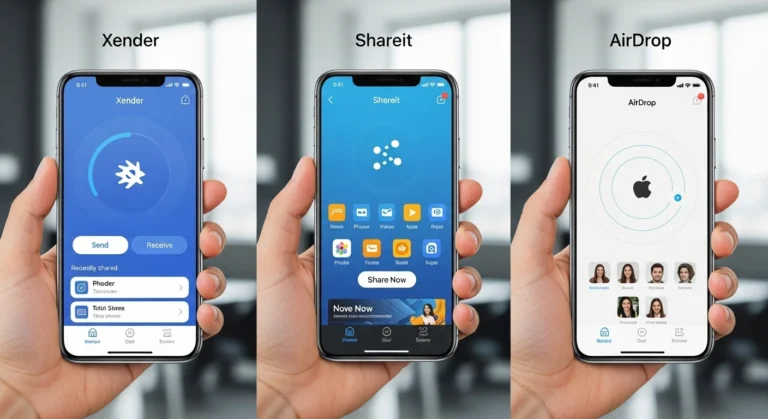
If you have tried all 6 steps and Xender still refuses to connect, it might be a deeper compatibility issue with your specific phone model or OS. Instead of wasting more time, I recommend switching to one of these high-speed alternatives.
In my testing, these three are the most reliable in 2026:
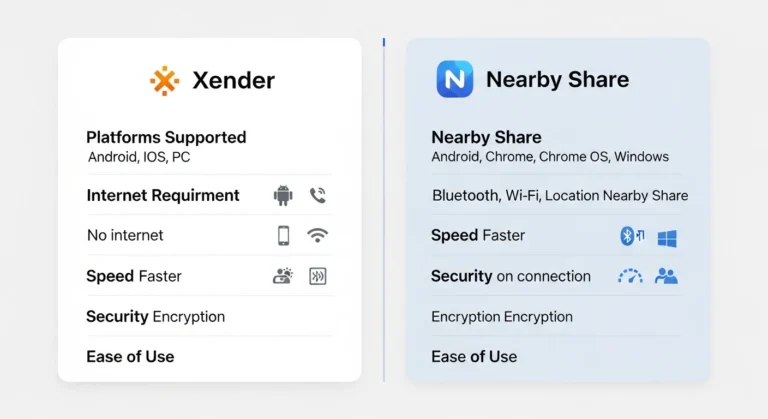
1. Quick Share (Formerly Nearby Share)
This is now the “Gold Standard” for Android. Since it is built into the Android System (Settings > Google > Devices & Sharing), you don’t even need to download an extra app.
- Best for: Transferring files between Android phones or to a Windows PC.
- Pros: 100% ad-free, secure, and uses Wi-Fi Direct for massive speeds.
If you hate ads and “bloatware”, LocalSend is my top recommendation. It’s an open-source app that works perfectly across Android, iOS, and Windows.
2. LocalSend (The Privacy King)
- Best for: Users who want a clean, fast experience without any tracking.
- Pros: No internet required, cross-platform, and completely free.
3. Zapya
If you specifically liked Xender’s “Group Sharing” and QR code features, Zapya is the closest match. It’s a veteran in the file-sharing niche and handles large 4K video files very well.
- Best for: Bulk transfers and older Android devices.
- Pros: Very stable connection and supports “Phone Replicate” for moving data to a new phone.
Conclusion: Getting Xender Back on Track
Fixing a “broken” Xender app doesn’t require a degree in software engineering. In most cases, the app just needs a quick cache clear or a fresh look at your location permissions.
By following the 7 steps we covered—from a simple restart to checking your network frequency—you can easily solve 99% of connection errors and slow transfer issues. If you need more help, visit the official website xender.com/support.
Key Takeaway: If the app still acts up after a full reinstallation, don’t get frustrated. Modern Android updates can sometimes be stubborn. In that case, I highly recommend switching to Quick Share or LocalSend to get your files moved without the headache.