
Most of the users wish to use Xender on a large screen on their desktop. They continue to search the internet for a way to download and use Xender for free on PC or Mac. I have also experienced this issue for a long time and finally found the easiest way, which I am still using without facing any problems.
Now, I am going to share with you the complete process of connecting Xender on Windows, whether you are using Windows 10, Windows 11, or macOS. Let me clear it first that Xender does not have an official PC or Mac desktop app. We will follow these three steps to run or set up Xender on PC:
- Install an Android emulator
- Install Xender APP from the Google Play Store/App Store
- Use Xender inside the emulator to transfer files
Step 1: Install an Android Emulator
There are many free emulators available on Google. But we will use the BlueStacks emulator in our case.
How to Install BlueStacks Emulator
- Go to google.com and search for “Bluestacks emulator.”
- Click the first link, “https://www.bluestacks.com/”. It will open in a new tab.
- There is a button “Download Bluestacks.” Click on it, and wait until the download is complete.
- After downloading is completed. Click on it to proceed with installation.
- Once installed, open it.
Step 2: Install Xender APP from the Google Play Store/App Store
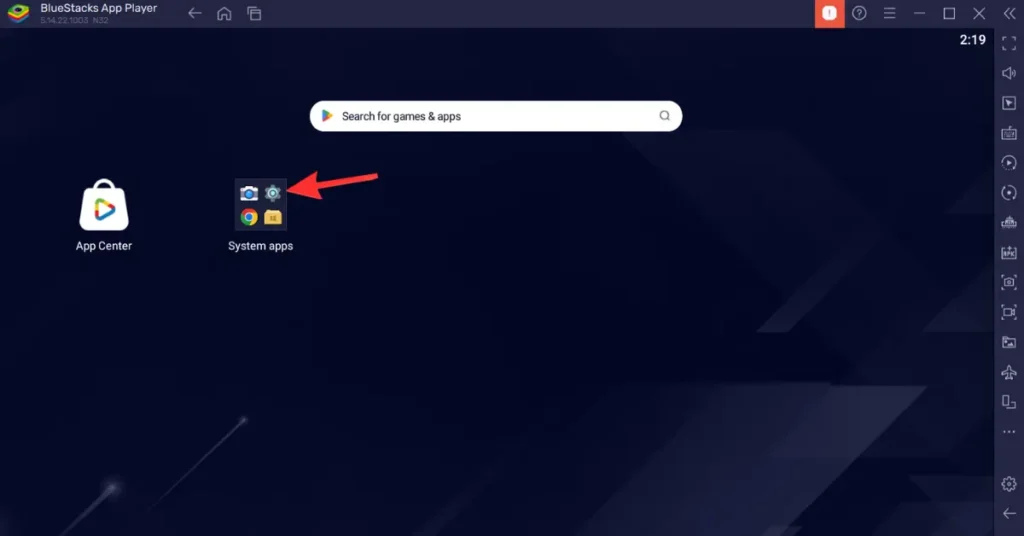
- On the Bluestacks screen, click on the settings icon.
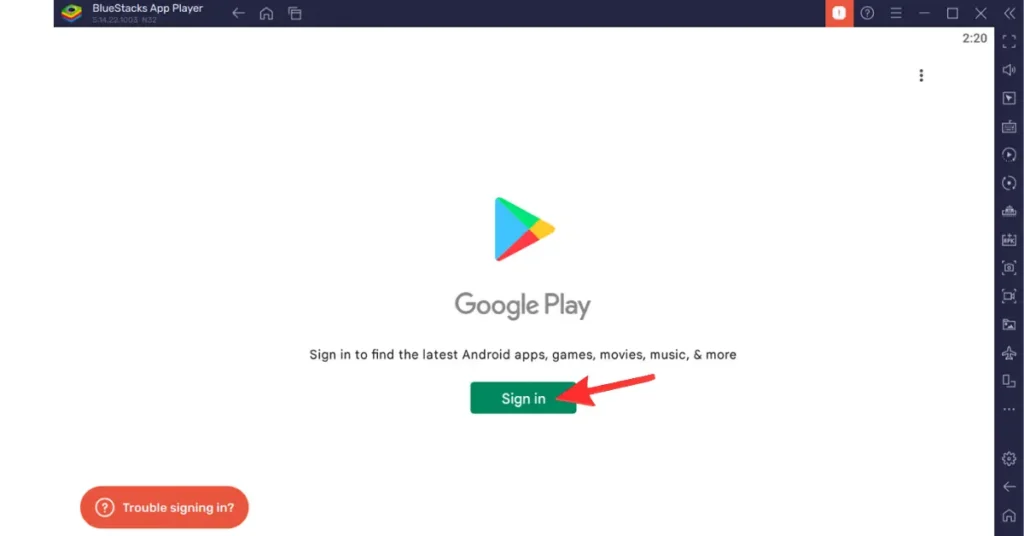
- Click Sign In for the Google Play Store. If you are already signed in, then ignore this step.
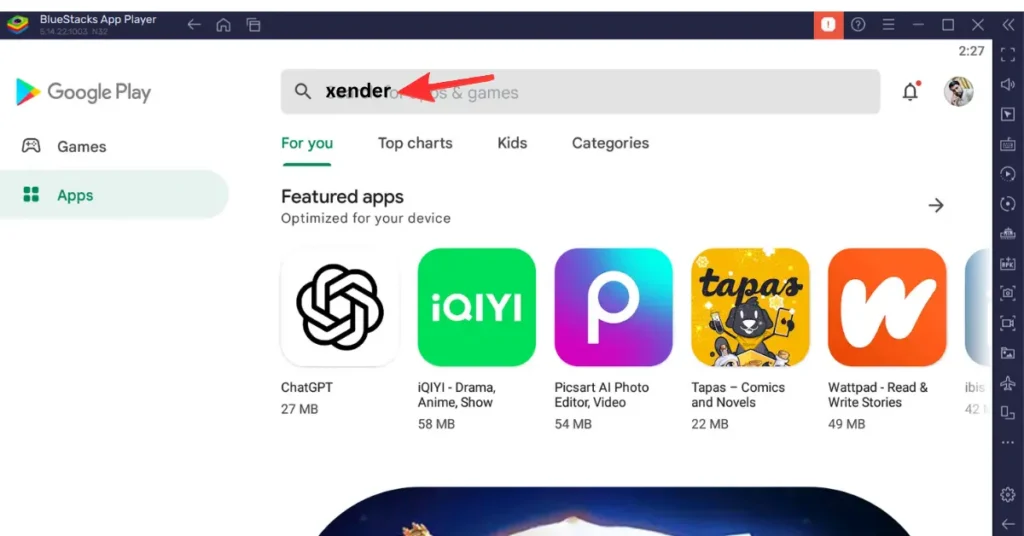
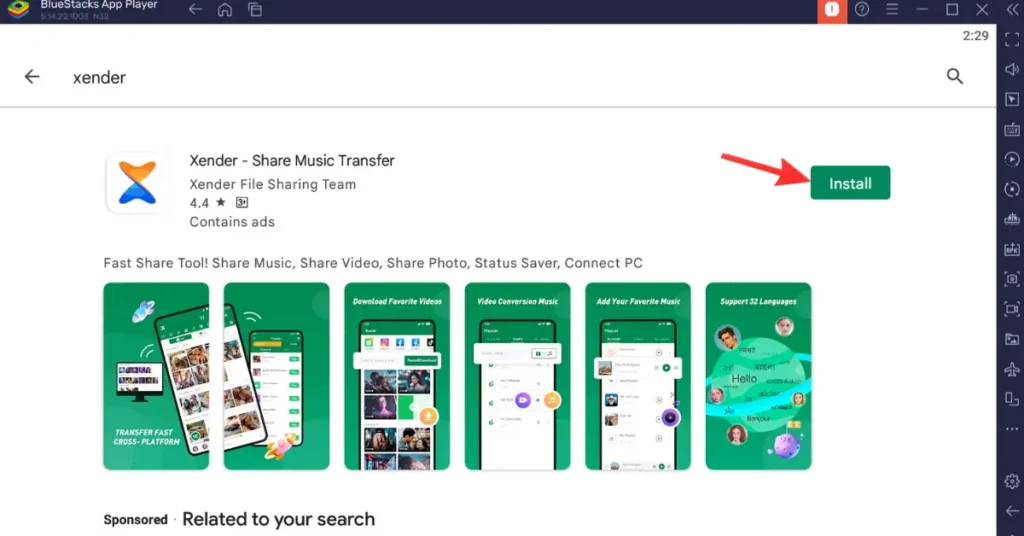
- At the Google Play Store, write “Xender” and click search.
Step 3: Use Xender inside the emulator to transfer files
- Now, click install for app installation. It will be installed inside the emulator.
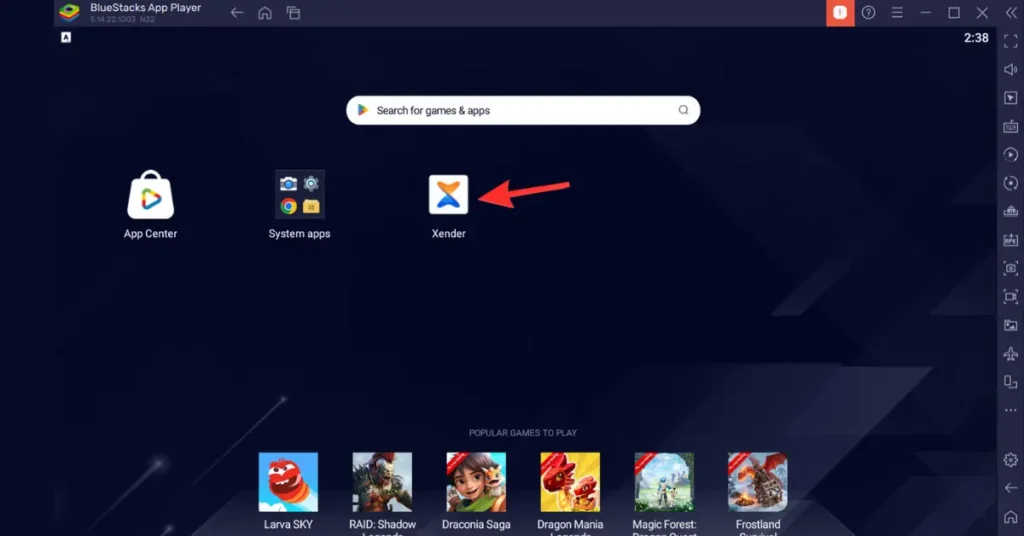
- Now, Xender is available on the emulator screen. Click and open it. Enjoy using Xender on a desktop.
FAQs
Q1. Is there an official Xender app available for PC or Mac?
No, Xender does not have an official desktop application for Windows or macOS.
Q2. How can I use Xender on a PC or Mac?
You can use Xender on PC or Mac by installing an Android emulator like BlueStacks and then installing the Xender app inside the emulator.
Q3. Does Xender work on Windows 10 and Windows 11?
Yes, Xender works on Windows 10 and Windows 11 when used through an Android emulator.
Q4. Which Android emulator is best for using Xender on PC?
BlueStacks is one of the most reliable and widely used Android emulators for running Xender on PC.
Q5. Is using Xender on PC through an emulator free?
Yes, both BlueStacks and the Xender app are free to download and use.
Q6. Can I transfer files between my phone and PC using Xender on an emulator?
Yes, you can transfer files between your mobile device and PC using Xender within the emulator.
Q7. Do I need a Google account to install Xender on BlueStacks?
Yes, a Google account is required to access the Google Play Store and install the Xender app.
Q8. Is it safe to use Xender on a PC via an emulator?
Yes, it is safe as long as you download BlueStacks from its official website and install Xender from the Google Play Store.
You may also like: How to use Xender Web with simple steps. Or a complete guide on Xender APK.